Imaging a solar eclipse SafeShot
Never, never, ever, under any circumstance should you be looking directly at the sun with unprotected eyes! It can cause permanent eye damage! Good thing you have a SafeShot! Now let's get this eclipse party going... Safely.
The challenge with solar eclipse photography is the change in lighting conditions as the eclipse progresses to totality, and then recesses back to full sun. To adapt to this, it's important to be able to use your Smartphone Camera App in Manual Mode. Either your originally installed camera app can do this, or you can download a free one from the app store.
Compatibility
- Smartphones: This guide applies to both Android and Apple smartphones.
- Camera Apps: In addition to the native camera apps on your device, several third-party camera apps are also available to download from either the Apple or Android app stores.
- Free camera apps include: Yamera, Manual Cam, Focos and Solar Snap
Initial Setup
- Attach your smartphone securely to the SafeShot Eclipse Viewer. SEE SAFESHOT INSTRUCTIONS!
- Open your preferred camera app and switch it into Manual Mode.
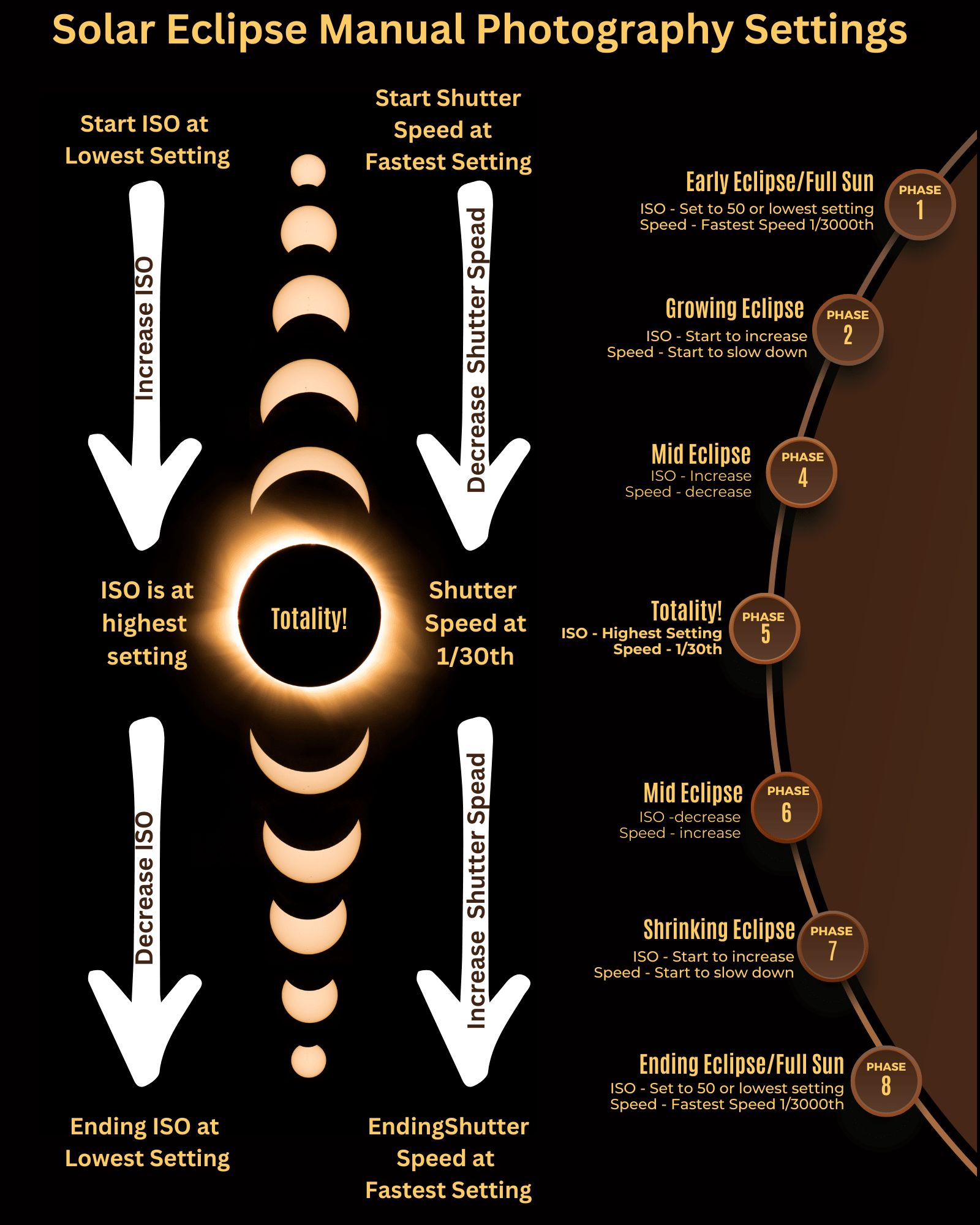
- Once in manual mode, you will want to adjust your ISO settings and Shutter Speed settings per the graphic below.
At the very beginning of the eclipse once you've established your initial ISO and Shutter Speed to get your best image of the full Sun, as the eclipse progresses to totality, you will adjust your apps ISO and Shutter Speed settings per the graphic below.
Once totality is reached, you will reverse your ISO and Shutter Speed settings back towards the original starting point.
Limitations & Challenges
Switching between settings during the eclipse is very easy with a Camera App that is in manual. Not all camera apps are created equal; some may have a more intuitive interface for changing ISO and Shutter Speed settings. For those of you that are Google 7 Pixel users, that Smartphone’s native camera app will not drop into manual mode. If you have this Smartphone you will have to play around with its app to get a feel for how it's going to work, or download a camera app that will allow for manual mode.
Experiment!
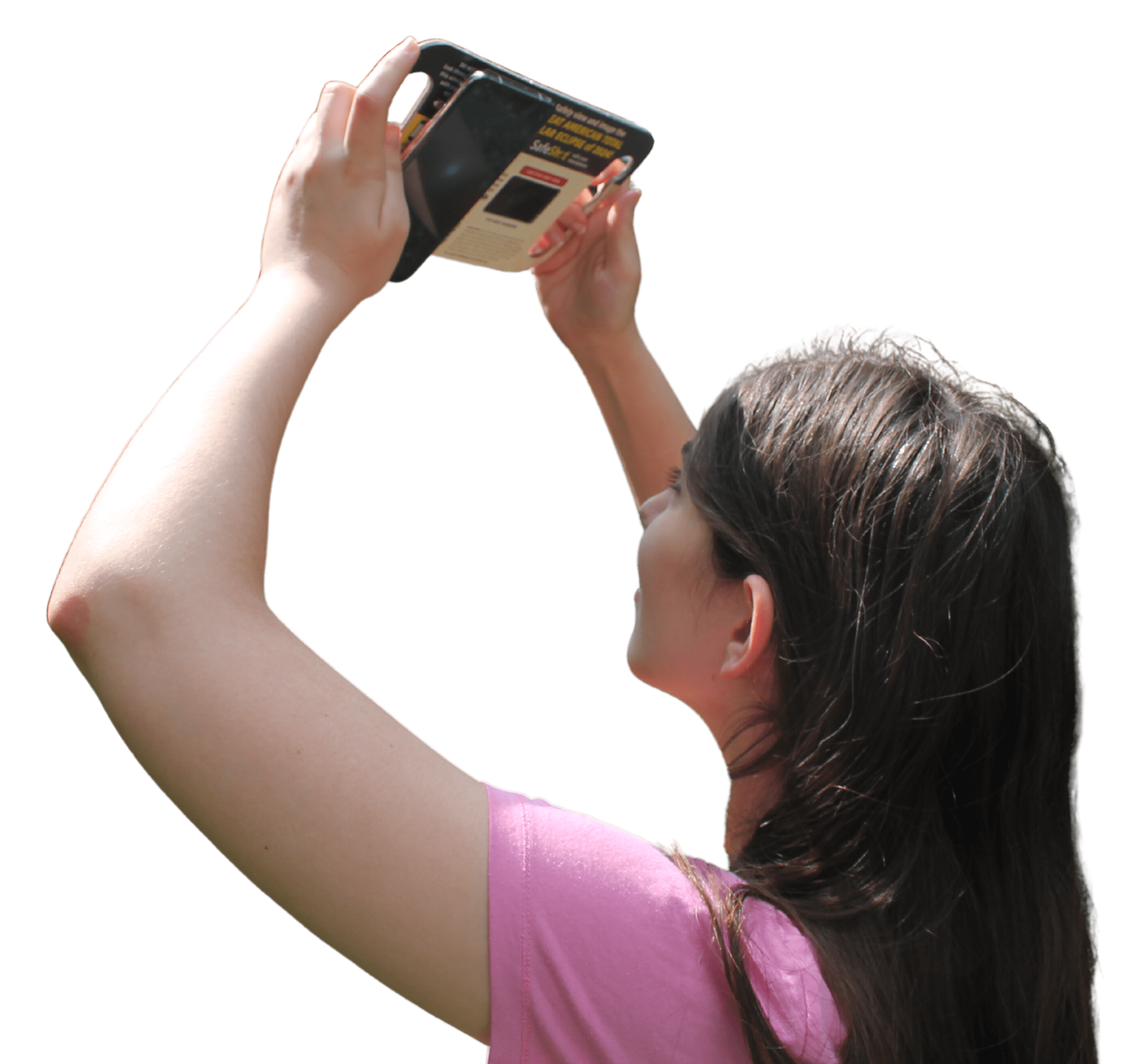
The best way to understand the functioning of the SafeShot system, is to use it to image the Sun (without any eclipse going on), this will give you experience for the early phases of a solar eclipse. Did you know that a full moon give off the same amount of light as a total solar eclipse? Yup it’s true. If you break out your SafeShot and smartphone during a full moon, you should be able to image the full moon based on Phase 4 settings above. Giving you an opportunity to test setting for the eclipse totality.